
Can you really start spinning clean mixes on your first try? We think yes. We built this intro so people like you can jump in and feel confident fast.
Ghetto Superstars is more than event services. We’re a creative hub for DJs, artists, planners, and music lovers. Music connects us. Everything you need starts here.
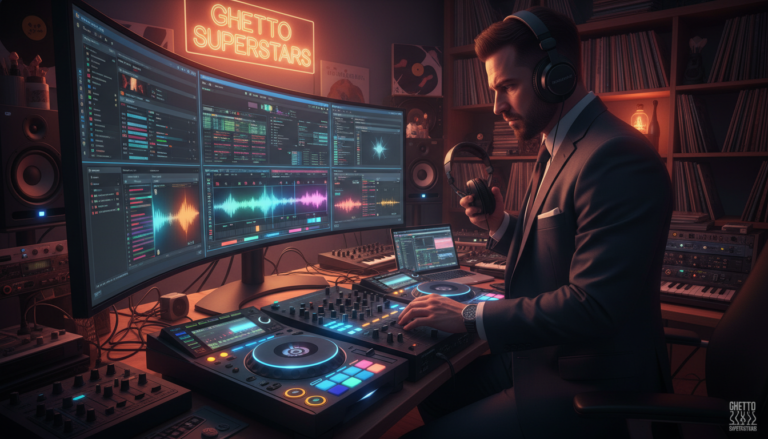
The software mirrors a classic booth: two players, a mixer, and a record box. That layout makes the core workflow easy to learn. You’ll load a track, press play, prep the next one, and keep the energy moving with no awkward silence.
We’ll show the simple steps to use virtual tools and give practical info for your first time opening the app. This is part of a community-driven path. When you’re ready, we point you to names, set ideas, and support in our ecosystem.
Key Takeaways
- Start by learning the two players + mixer layout.
- Focus on timing, not tricks, to keep the vibe strong.
- Use simple, repeatable workflows for steady progress.
- Community support makes learning faster and more fun.
- This section gives the core info you need for your first time.
Who This Virtual DJ Guide Is For and What You’ll Learn
If you’ve ever wondered what those players and a mixer actually do, you’re in the right place. We write for people who want a clear path from “What am I looking at?” to “I can mix two songs.” Music brings us together.
What DJing looks like in real life
At its core, a DJ setup equals two decks feeding a mixer. Your role is to pick the next track and blend it in. One deck plays while the other waits. The mixer glues them together so there are no gaps.
Computer only vs. adding a controller
You can start with a computer—keyboard and mouse—to learn timing and phrasing. That way you can use software and practice right away.
When you add a controller, a new type of hands-on control appears. You gain the ability to move multiple knobs at once. That number of simultaneous adjustments makes transitions smoother.
- Who: Beginners who want a simple, honest path.
- What: Learn what each side (left/right) does and why.
- How: Start on a computer, upgrade to hardware for faster performance.
Why Use Virtual DJ Instead of CDs or Vinyl for Your First Mix
Learning to mix on a computer takes pressure off so you can focus on song choices.
We say this because programming wins nights. DJ Bolivia’s view—about 90% of what the crowd feels is song selection and flow—guides how we teach you to start.
Use software to practice phrasing and beat-matching without sweating a broken needle or a skipped track. You get clear waveforms, BPM info, and time markers that help your transitions land clean.
Lower pressure while you learn
Software reduces the fear of mistakes. You can rehearse, record, and retry. That speed builds confidence fast.
Programming matters most
Pick songs that sit well together. Keep the energy moving. A tight playlist lets your technical skills shine when they need to.
- Practice phrasing so transitions sound intentional.
- Avoid dead air, clashing bass, and wild volume jumps.
- For house and open-format sets, BPM sorting saves time.
| Benefit | Why it matters | How we make sure |
|---|---|---|
| Less pressure | Fewer hardware mistakes | Record & retry sessions |
| Better programming | Floor judges song choice | Arrange playlists by mood/BPM |
| Faster skill gain | Repeatable practice | Waveforms & cue points |
Choosing the Right Version and License for the Way You DJ
The version you pick shapes what gear you can plug in and which features appear.
We want you to choose with clarity. Home use is free for non-professional users who stick to a mouse and keyboard. That keeps costs low while you learn.
Home use vs. professional use expectations
Home use gives core mixing tools and waveforms. It’s perfect for practice and recording mixes. Professional use means paid gigs and reliable hardware support. For that, you’ll need a Pro-level license.
Subscription vs. one-time Pro license considerations
Subscription: About $19/month. Easier on cash flow and good if you want short-term access.
One-time Pro: Roughly $299. You own it long-term and avoid recurring charges.
Controller support and what changes when you plug hardware in
Most controllers require Pro. The moment you plug a controller in, extra mapping, MIDI support, and advanced outputs unlock. The software treats that as professional use.
“Choose the license that matches where you play today and where you want to go next.”
- Start free if you want to learn at home.
- Plan to upgrade when you take paid gigs or add a controller.
- Check playlist and automix tools by version so you’re not surprised.
| Use case | Recommended version | Key notes |
|---|---|---|
| Learning at home | Home (free) | No controller support; great for practice |
| Gigging part-time | Pro (subscription) | Low monthly cost; immediate controller support |
| Pro career | Pro (one-time) | Long-term ownership; no recurring fees |
Installing VirtualDJ on Windows or Mac and First Launch Checklist
A smooth first launch saves hours of headache later; here’s how to do it right. We walk you through account setup, the install file, and the quick checks that let you start with confidence.
Create an account on the official site, download the installer for your computer, and run it. Sign in on first run so your settings sync and licenses appear.
When the app opens, confirm the default two-deck layout shows on your screen. That layout is the core part of the workflow you’ll learn next.
- Audio device detected: confirm speakers or sound card appear.
- Library location: set the folder where you keep music and name folders clearly now.
- Latency check: play a track and test headphone cueing; adjust if there’s lag.
If your computer is older, keep defaults. Learn the workflow, then tweak settings. You’ll be ready to load your first track within minutes — no rabbit holes.
Understanding the VirtualDJ Screen: Decks, Mixer, and Browser
Look at the screen as a stage: each part has a role and the music moves through it. We’ll show the main parts so the interface feels like a real booth, not a maze.
Two decks and what each side does
The two decks are the players where you load a song. One side plays while the other waits. Use play/pause, pitch, and track position to set cue points and start clean.
The on-screen mixer: volume, EQ, and crossfader
The on-screen mixer controls what reaches the crowd. Channel volume sets loudness. EQ shapes bass, mids, and highs. The crossfader moves audio between channels for fast transitions.
The browser as your record box
The browser is where you pick and prep tracks. Think of it as your record box—search, sort by mood or BPM, and load the next song without breaking flow.
Waveforms, BPM, and what to watch
Watch waveforms for beat alignment and peaks. Check BPM to match tempo. Keep an eye out for clipping or mismatched energy so mixes stay smooth.
“Point to any part and say what it does. That’s how you own the set.”
| Part | What it does | Quick tip |
|---|---|---|
| Deck / player | Loads and plays a song; shows waveform | Set a cue on the first strong beat |
| Mixer | Combines channels, controls volume and EQ | Cut bass on incoming track to avoid clashing |
| Browser | Searches and organizes your collection | Sort by BPM or key for faster selects |
- We decode the layout so you can point and act.
- Practice watching only the key meters at the right time.
Setting Up Audio: Speakers, Headphones, and Sound Card Options
Hear it right: split outputs make cueing simple and reliable. We set speakers for the crowd and headphones for your next move. That separation is how mixes stay clean and confident.

How cueing works: Cueing lets you pre-listen in headphones while another song is playing in the speakers. Use the cue button to route Deck B into headphones only, so your transitions are private and precise.
Single stereo output vs. multi-channel outputs
If your computer has one stereo output, both master and phones share the same path. That causes bleed and lost cues.
Multi-channel or surround sound cards offer separate outputs. One pair goes to the speakers; another pair goes to your headphones. That gives true cue control.
When to add an external audio interface
- Use an external sound card or USB headphones when your laptop has a single output.
- Two stereo sound cards or a multi-channel interface is the clean option for practice and gigs.
- Test the setup: can you hear the deck playing in monitors while the next track is only in headphones? That’s the win condition.
“Set audio right once. Then you can practice transitions like you’re on stage.”
Building Your Music Library: Importing, Organizing, and Avoiding File Issues
We keep it simple: a tidy music collection saves time and keeps sets steady. Small moves now stop big headaches later.
Adding folders and keeping your library tidy
Add folders where your tracks live. Point the browser to that root folder so files stay linked. Name folders by genre, energy, or event.
Keep one habit: don’t move files after importing. If you must, re-scan the folder so the software finds the new path.
Using tags, playlists, and search for faster song selection
Tag songs with mood, intro length, and clean/dirty. Build playlists as set blueprints—an ordered plan you can trust under pressure.
- Tags: energy, era, vocal/instrumental.
- Playlists: practice order, warm-up, peak.
- Search: use the browser to find the exact song fast.
Common “song won’t load” problems and what to check
If a song won’t load, run this checklist: file moved, unsupported format, permissions/DRM, or a broken path after reorganization.
“A clean library turns the browser into your best performance tool.”
| Problem | Likely cause | Fix |
|---|---|---|
| Song not found | File moved/renamed | Re-link or re-scan folder |
| Won’t open | Unsupported format | Convert to MP3/AAC without DRM |
| No sound | Corrupt file | Replace file from backup |
| Permission error | DRM or locked file | Remove DRM or use a different file |
First-Time Workflow: Load a Song, Press Play, and Control Volume
We keep the first-time sequence short so you build muscle memory fast. Pick a song, load it to a player, press play, and confirm sound. Repeat this basic loop until it feels natural.
Loading songs from the browser to either deck
Open the browser and find the track you want. Drag or use the load button to place the song on either deck.
Tip: name folders clearly so you can fetch the right song under pressure.
Using the channel fader so audio reaches the speakers
A common beginner mistake is hearing a track in the deck but nothing from the speakers. That happens when the channel fader is down.
Raise the channel fader and then press play so the audience actually hears the music. Make sure your cueing stays private in headphones.
Setting a safe master volume to prevent clipping
Set master volume low at first. Watch the meters and avoid the red. Clipping sounds harsh; it kills energy and frays speakers.
Balance each channel’s volume against the master volume so tracks of different loudness sit together cleanly. This habit protects your ears and keeps mixes smooth.
“Start simple. Control levels. Play with confidence.”
- Sequence: pick → load → press play → confirm sound.
- Watch: channel faders and master volume to avoid clipping.
- Outcome: you’ll reliably get audio out and keep the set solid.
How Cueing Works: Finding the Right Start Point and Getting Ready to Mix
Cueing is the secret that turns a rough handoff into a confident launch. We position the next track where we want it to start so transitions land with purpose.
Choose the exact start point
Set the cue on the first strong beat for tight blends.
Or place it after a long intro when you want the energy to hit immediately.
Pre-listen and decide quietly
Use your headphones to hear the track while the current song playing fills the room.
This gives you time to check phrasing, volume, and vibe before you act.
- We turn cueing into a superpower so you stop guessing.
- Practice micro-decisions: start on the 1 or skip the intro?
- Prep the track so it’s ready at the right time when you’re playing next.
- Confidence follows: a clear start point relaxes your hands and sharpens transitions.
“When you cue with intent, the set feels planned even when it’s spontaneous.”
For deeper technique on setting precise cue points, check this primer and practice the moves until they become second nature.
Basic Mixing with Two Decks: Going Back and Forth Without Gaps
Keep the music moving: the real skill is switching between two decks without a hiccup. We teach a core loop you can practice: load/play one track, cue the next, then swap. That simple loop prevents dead air and keeps the room alive.
Match BPM and align the beat
Start by checking BPM visually and with your ears. Use waveforms to line up the downbeats. A small nudge on pitch keeps beats locked without over-correcting.
Crossfader vs. channel faders
Use the crossfader for fast swaps and cuts. Use channel faders when you want a smooth blend and more control. Practice both so you know which fits your style in the moment.
EQ basics and bass control
EQ is your collision-avoid tool. When two tracks overlap, cut the incoming track’s bass until you move the weight over. That avoids muddiness and keeps the low end tight.
Timing your transition
Choose a timing style: fade early for smoothness, fade on time for precision, or mix after the drop for dramatic impact. Each choice sets a different mood. Try all three and make them yours.
Keep volume consistent
Watch meters and match perceived loudness between songs. Small trim adjustments beat huge jumps. Consistent volume keeps the energy steady and your mix reliable.
“Go back and forth with purpose. No gaps. No clashing bass. Just the music.”
| Skill | When to use | Quick tip |
|---|---|---|
| BPM & beat alignment | Before starting a mix | Align downbeats visually, nudge pitch |
| Crossfader | Fast swaps, cuts | Keep it centered until the moment |
| Channel faders & EQ | Smooth blends | Cut bass on the incoming channel |
Using the Browser Like a Pro: Sorting, Filtering, and Quick Picks Mid-Set
A clean browser turns chaos into calm during a live set. We treat the browser as your record box: quick search, fast load, and zero second guessing. Good habits here keep the energy moving.
Sort by BPM, key, or time to spot compatible tracks fast. When you sort by BPM you see tempo matches instantly. Sorting by key helps avoid clashing harmonies. Sort by time to check intros and outro lengths for smooth handoffs.
Crate-style organization keeps genres tidy. For house, crate by energy: warm-up, peak, and late-night. For open-format, crate by era and vibe. Keep a “sure win” crate for emergencies so you always have a reliable song.
- We train you to always know the next two songs, not just the next one.
- Use quick filters and favorites to make picks without killing momentum.
- Build an order that fits your style: planned sets or freestyle reads of the room.
“A tidy browser is the backbone of confident performance.”
Playlists and Automatic Playback: When You Want Songs to Run Uninterrupted
A well-ordered playlist keeps the vibe rising without you glued to the screen. Use this when you run background music, practice, or handle tasks and need continuous sound. Playlists can be hands-off or part of a semi-managed set.
Creating a playlist in the right order
Start with intent. Put warm-up tracks first, then raise energy in the middle, and land with familiar closers. Arrange by tempo, key, or mood so transitions feel natural.
Version differences that affect playlist features
Be aware: automix and uninterrupted playback depend on your version. Some editions include advanced automix features; others limit playlist controls. Check your edition before relying on auto features for an event.
- When to use playlists: background sets, practice runs, or hands-busy moments.
- Safety playlist: keep a short, tested list of crowd-pleasers ready to load fast.
- Test first: check volume levels, crossfade behavior, and track load times before you depend on automation.
“Control the flow even when you step back — playlists are your planned spontaneity.”
| Use case | Recommended setup | Why it matters |
|---|---|---|
| Background music | Ordered playlist + automix | Keeps uninterrupted songs for long runs |
| Practice session | Short playlists by skill focus | Repeatable time blocks for drills |
| Live event backup | Safety playlist of hits | Quick reset if a technical issue arises |
| Hands-on performance | Manual control, no automix | Full creative use of effects and transitions |
For tools that help with names, track ideas, and set structure try our free AI music tools. They speed up playlist creation and save time when you need a fast, reliable order.
Keyboard and Mouse vs. DJ Controller: What Changes in Real Use
A tactile controller turns clicks into muscle memory and faster mixes. We can DJ with a keyboard and mouse. It works for learning the workflow and to use software on a laptop.
But a controller changes how you play. A mouse moves one control at a time. A hardware unit lets you adjust more than one thing at a time.
Why hands-on gear helps
With a controller you use two hands. One hand can ride a fader while the other shapes EQ or nudges a jog wheel. That split makes timing cleaner and transitions smoother.
Picking a beginner-friendly option
Match the unit to your computer and goals. If you want use gear for home practice, choose a compact, USB-powered controller. If you plan to gig, pick a model with a built-in mixer and sturdy faders.
Plan the cost: many controllers may need a Pro license once plugged in. Buy gear when it removes friction from practice, not just for looks.
“Two hands, one mission: clearer mixes and faster skill gain.”
Getting Started with Video Mixing in VirtualDJ
Treat your visuals like instruments: they respond to phrasing, energy, and timing. A good video mix supports the music instead of stealing focus.
What a video mix is and what you’ll need to begin. A video mix blends clips the way you blend tracks—match beats, match mood, and respect phrasing. To start you need a capable computer, optimized settings, and clips that won’t choke your playback.
Basic video transitions and avoiding distracting cuts
Use clean fades and simple wipes. Avoid flashy moves that clash with the music.
Cut on musical moments: drops, phrase ends, and vocal hits make transitions feel intentional. Keep transitions short and timed to the beat so the visuals stay in sync.
Managing video content performance on your computer
Test CPU and GPU load before the set. Close background apps and keep files on fast storage to reduce stutter.
Consider a content subscription if you need ready clips — the platform offers a video plan for about $49.99/month that simplifies sourcing reliable material.
“Video should lift the moment. Keep it tight, timed, and true to the music.”
- Prep: transcode heavy files to friendly formats.
- Monitor: watch performance meters during rehearsal.
- Create: build a short, tested visual crate to call on mid-set.
| Need | Why it matters | Quick fix |
|---|---|---|
| Capable computer | Prevents dropped frames | Use SSD and test GPU |
| Optimized clips | Reduces CPU load | Lower bitrate or resolution |
| Timing plan | Keeps visuals musical | Cut on phrases and drops |
Practice Plan for Your First Days: Skills to Build in the Right Order
Start with short, focused sessions. We stack one skill on top of the next so you gain stable wins. This plan gives clear steps for the first few days and keeps progression fast and honest.
Day-by-day drills: cueing, beatmatching, and clean fades
Day 1: cue practice. Find start points and set reliable cues. Repeat until your hands do it without thinking.
Day 2: work on beat alignment. Match tempo, nudge pitch, and lock down two-bar mixes.
Day 3: train clean fade moves. Use channel faders and EQ to avoid bass clashes.
Recording short mixes and reviewing your transitions
Record 10–15 minute mixes each session. Listen back like a producer. Note timing, bass clashes, and sudden volume jumps.
Fix one issue per session and repeat. Consistent time on task builds technical control fast.
How to build confidence before playing for people
Start private. Then play for friends. Then small rooms. Progressive pressure keeps nerves useful, not crippling.
Every clean transition proves you’re leveling up. Confidence grows with repeatable results.
“Structure beats random practice. Consistency earns trust.”
| Phase | Focus | Goal in one session |
|---|---|---|
| Early days | Cue & start points | Set 10 reliable cues |
| Middle days | Beat alignment | 3 clean two-bar mixes |
| Later days | Fades & EQ | Smooth transitions with no bass clash |
Level Up with Ghetto Superstars: Tools, Mixes, Gear, and Event Support
Grow your skillset and your reach with tools, mixes, and real event support. We plug you into a creative hub that helps artists and planners turn an idea into a live moment.
Free AI Music Tools
Discover fast inspiration. Use our Free AI Music Tools to create DJ names, setlists, and event concepts in minutes. Try them here: free AI Music Tools.
Stream and Download Mixes & Video Mixtapes
Study real sets from our crew. Stream and download mixes and video mixtapes to learn pacing and crowd work. Access them here: download mixes.
Event Production and Equipment
Need pro support in Uganda? We offer sound & PA, lighting, and full event services. Our team handles audio setup, stage flow, and on-site execution so you can focus on the moment.
Shop, Support, and Book
Browse audio gear tailored to your goals. Support community impact via the Ghetto Foundation. Book or inquire: +256 741 669 338 or services@ghettosuperstars.co.
MUSIC CONNECTS US. We turn that connection into moments that matter for people, artists, and events.
Conclusion
Bring it all together — the real win is consistent choices, not fancy moves.
We recap the beginner path in one clean run. Understand the two players and the mixer. Set up audio and a tidy library. Cue with intention. Then mix with tight timing and steady volume.
You’ll leave knowing the formula: pick the right song, cue it to the right start, blend at the right time, and keep the energy moving. Programming is your power. Good song order beats flashy tricks every time.
Keep practicing in short sessions. Record your sets and improve one transition at a time. Choose the right version or license so your setup grows with your goals.
Music connects us. When you’re ready, join our hub for tools, mixes, and event support. Try our free AI tools, stream mixtapes, or book support: Free AI Music Tools, Mixes, Services. Call +256 741 669 338 or email services@ghettosuperstars.co.
Build your sound. Build your confidence. Then build community through the music you play.