
Can you build real DJ skills with just a laptop and a will to learn? We say yes. Right now, a laptop plus internet can teach timing, transitions, and energy control. This is the truth: you can start DJing without equipment and still grow into a confident performer.
We are Ghetto Superstars — more than a service. We are a CREATIVE HUB for DJs, artists, event planners, and music lovers. Our tone is community-first. We promise practical steps that work with a laptop only.
In this short guide you’ll get clear laptop setup tips, software choices, audio stability fixes, and keyboard/mouse mixing hacks. We define what starting means in 2026: no controller, no decks, no mixer — just smart prep and focused practice. This approach fits dorm rooms, apartments, home studios, and surprise house parties.
Key Takeaways
- Start with a laptop and internet; skills matter more than gadgets.
- Learn timing, track selection, and clean transitions first.
- Choose stable software and optimize audio settings for reliability.
- Practice keyboard/mouse mixing and library analysis techniques.
- Join our community for mixes, tools, and ongoing support.
Modern software turns a humble laptop into a powerful mixing studio.
We believe access beats gear obsession. A laptop can teach timing, phrasing, and playlist craft. It’s a real ACCESS point for anyone wanting to perform or produce.
When controllerless setups give you an edge
Going without controller is often a smart move. Travel. Tight budgets. Surprise gigs. Small rooms. These are moments a laptop wins.
- Fast setup for live streams and pop-up shows.
- Focus on fundamentals, not button memory.
- Works as a reliable backup when controllers fail.
What you can and can’t do with a computer
Most software lets you load tracks, set cues, tweak BPM, apply EQ, use effects, loop, record, and prep playlists. That covers 90% of great mixes.
| Task | Mouse & Keyboard | Physical Controller |
|---|---|---|
| Load tracks & set cues | Easy | Easy |
| Scratching & jog-wheel nudges | Limited | Superior |
| Fast multi-parameter changes | Challenging | Fluid |
| Timeline editing & automation | Excellent | Possible but less precise |
Live laptop mixing vs studio-style mix creation
Live mixing tests your reflexes and crowd read. Studio/timeline work rewards precision and repeatable polish. Both teach transferable skills for CDJs and club mixers.
“Start where you can. The mindset you build on a laptop carries to every stage.”
Choose your path based on goals — play live or craft polished sets. Either way, you get real, future-proof options.
What You Actually Need to Start Mixing Today
Start small and get loud: your laptop is the launchpad for real mixes. We mean it. A reliable computer, steady internet, and decent headphones let you start mixing now. No flashy gear. Just focus.
Why headphones matter: they become your hands. Cueing and timing live in your ears when you lack physical controls. Good cans reveal kick hits, vocal breaths, and phrasing so your transitions stay tight.
- Minimum: laptop you own, stable internet, wired headphones.
- Low-cost upgrades: USB mouse, extra SSD storage, spare earbuds for checks.
- Optional later: small audio interface and nearfield monitors for better monitoring.
Quick comparison to help you decide
| Item | Cost | Benefit |
|---|---|---|
| Laptop | Existing / $0–$500 | Runs software; library and playlists |
| Headphones (wired) | $20–$80 | Accurate cueing and detail |
| USB mouse & extra storage | $15–$120 | Faster control; more tracks saved |
| Audio interface & monitors | $100–$300 | Clearer monitoring; studio feel |
Mindset check: your taste, timing, and prep are the real hardware. Get practice now, level up later, and read our complete beginner’s guide when you’re ready to expand.
Pick Beginner-Friendly DJ Software That Doesn’t Require Hardware
Your software choice sets the path from bedroom practice to club-ready sets. Pick a tool that matches your goal and commit to it. We celebrate progress, not gadget shopping. Learn one workflow and get deep.
Rekordbox is free and trains you on Pioneer-style club logic. That means your crates, cues, and tempo habits transfer when you face CDJs. It’s the clear lane for anyone aiming for pro club setups.
Serato DJ Lite and VirtualDJ are the fastest routes to play tonight. They load quick, have simple layouts, and cover core controls so beginners learn phrasing and transitions fast.
DJ.Studio flips the script: timeline-based mixing for mouse-and-keyboard creators. It feels like a DAW, with precise editing and AI-assisted ordering that helps you craft studio-perfect sets.
- Key features to demand: waveform view, BPM controls, cue points, EQ, record/export, and solid library management.
- Pro tip: test free trials first. Upgrade only when your workflow needs it.
| Software | Best for | Standout features |
|---|---|---|
| Rekordbox | Club workflow / Pro transition | Cue banks, performance mode, Pioneer compatibility |
| Serato DJ Lite | Quick live starts | Simple layout, fast learning curve, core mixing tools |
| VirtualDJ | All-rounder for fast setups | Robust browser, effects, streaming support |
| DJ.Studio | Timeline & mouse editing | DAW-style timeline, precise edits, AI ordering |
Set Up Your Laptop for Smooth DJ Performance
Prep your laptop like it’s the stage—small fixes mean big gains. We want you to focus on music, not firefights with CPU spikes. A clean, tuned laptop boosts performance and keeps your head in the set.
System basics to check before play
Update drivers and OS when you have time — not right before a set. Lock in a restore point and avoid surprise patches on show day.
Keep disk space free. Aim for ~20% free so waveforms and caches load fast. Less free space means slower loads and more risk when you need tracks quick.
Power and background control
Switch to High Performance power mode, stop sleep, and keep the charger plugged in. Close cloud sync, browser tabs, overlays, and any apps that steal CPU.
Latency and buffer made simple
Buffer size affects how fast audio responds. Smaller buffer = lower latency but more glitches. Bigger buffer = stable playback with a bit more delay.
- Start with stability: higher buffer, then lower it once your system proves steady.
- Quick test: run your software 30 minutes with multiple tracks, effects, and EQ. Watch for dropouts.
“Stability first. Then shave milliseconds.”
| Action | Why it matters | Quick setting |
|---|---|---|
| Update drivers & OS | Fixes audio bugs and compatibility | Schedule weekly checks |
| Free disk space | Speeds waveform loading | Keep ~20% free |
| Close background apps | Frees CPU for audio | Quit cloud sync and browsers |
| Power mode | Prevents throttling during long sets | High Performance; charger on |
| Buffer size | Balances latency vs stability | Start large, reduce after testing |
Last tip: run these checks during practice time. These simple tips keep your audio steady and give you more time to move the crowd.
Configure Audio Output and Drivers (So It Doesn’t Glitch)
Clean audio routing keeps your set solid — it’s the unseen backbone of every great mix. We treat reliability as a core feature. Tidy drivers and sane ports stop most live problems before they start.
Windows ASIO vs macOS Core Audio basics
Think of drivers as the road between your software and speakers. On Windows use ASIO for low latency. On macOS trust Core Audio for native stability.
Sample rate and buffer settings for stable playback
Start with 44.1 kHz and a 256–512 buffer. This balance keeps the sound tight and reduces dropouts while you run effects and EQ.
Testing outputs before you hit record or play live
- Play two decks, toggle cue, tweak EQ, and record 60 seconds.
- Crackles = buffer too low or CPU strain. Delay = buffer too high.
- Avoid fragile chains: plug straight into ports, skip flaky USB hubs and random adapters.
“Reliability first. A steady signal keeps the crowd and your confidence.”
Quick checklist: check drivers, set sample rate, pick a safe buffer, test and record a short run. This simple setup saves the night.
DJing without equipment: How to Mix Using Only Keyboard and Mouse
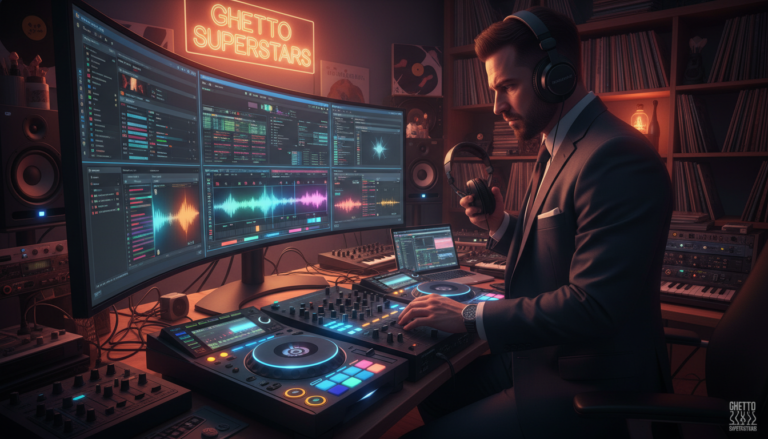
We teach the screen like a real console. Two visible decks, clear waveforms, an on-screen mixer, and a focused browser/library make your interface feel like a proper booth.
Learn each area: waveforms show phrasing and breaks. The mixer blends volume and EQ. The browser finds the next track fast. Treat each section as a tool, not clutter.
Shortcuts that replace buttons, knobs, and faders
Memorize play/pause, cue, sync, loop, and nav keys. In Rekordbox Performance mode use +/- to nudge BPM and on-screen arrows for micro-adjusts. Shortcuts speed up your mixing and cut reliance on physical controls.
Mouse control tips for EQ, volume, and transitions
Move the mouse with intent. Make single, slow EQ sweeps during blends. Click to set cue points, drag only to trim. Avoid rapid click-drag chaos — one clean move at a time wins the room.
Practice routine when you lack jog wheels
- Start with timing: play/stop to lock phrase starts.
- Set two cues per track: intro and phrase drop.
- Practice volume blends, then add light EQ swaps.
- Use software nudge to push or pull beats back into alignment.
“Calm choices and clean track selection beat flashy moves every time.”
| Action | Why it helps | Quick tip |
|---|---|---|
| Map shortcuts | Replaces physical controls for speed | Learn 6–8 keys first |
| Use 2-deck view | Matches club deck layout | Keep mixer visible |
| Set cue points | Ensures tight starts | Mark intro & phrase drop |
| Nudge via arrows | Fixes drift without jog wheels | Small taps, listen closely |
Final note: Controllerless mixing trains your ears and focus. Prep your interface, learn controls, and practice calm decisions. We do this together — start small, play big.
Build a Starter Music Library Without Spending a Fortune
Start your collection with intention: a small, legal library unlocks faster progress. We want you practicing clean, confident mixes that translate to any stage.
Where to legally get tracks and starter packs
Legal sources matter. Grab free starter packs, label promos, and creator downloads. Crossfader offers a free multi-genre music pack that’s perfect for beginners.
Paid stores are an option later, when you know what you love. In the US, keep rights clear for uploads and gigs. Build clean from day one.
Choosing genres you can learn fastest (and why it matters)
- Pick 1–2 genres with steady tempo and simple structure for faster learning.
- Start with 20–50 practice songs. Fewer items, deeper familiarity.
- When you know the drops, breaks, and outros, your mixes become intentional and confident.
“Quality practice material beats a giant, unknown library every time.”
Organize Your Music Like a DJ (So You Can Find the Right Track Fast)
Treat your collection like an instrument — tuned and ready. Good ORDER saves time, stress, and keeps you in the moment. We want you picking the perfect track in seconds, not minutes.
Folder structure that won’t break links
Set a single master folder and keep files inside it before you import. Pick one system and stick to it. Artist/Release or Genre → Year → Energy both work well.
Golden rule: organize FIRST, import SECOND. Rekordbox and many other software reference file paths, not copies. Move files later and the deck may load silence.
Tagging by BPM, key, energy, and vibe
Tag each track with BPM and key. Add short vibe notes like “warm-up,” “peak,” or “chill.” Energy tags help you pick sets fast.
Fixing missing files and broken paths
Use Relocate Missing Files or auto-relocate tools to repair links. Set search folders so recovery is quick. That beats manual hunting when you’re under pressure.
Smart crates and real-life playlists
Build crates for parties, workouts, and sunset chill. Keep a “safe” playlist of crowd-pleasers. Fast selection improves your SKILLS and keeps the energy moving.
“Your library is your instrument — treat it like one.”
Analyze Tracks: BPM, Beat Grids, and Key for Clean Transitions
Accurate analysis turns messy mixes into tight, confident sets. Treat analysis as a CORE TECHNIQUE: BPM, beat grid, and key data are the scaffolding your set rides on. When the grid is right, your software behaves and your mixes feel effortless.

Why analysis matters for syncing and FX
Beat grids power synced work. Beat-synced echoes, loops, and time-based effects depend on grid accuracy. If the grid sits off the kick, those effects will land late and sound messy.
Normal vs Dynamic analysis — when to use each
Use Normal for modern dance and electronic tracks with steady tempo. It is fast and consistent. Choose Dynamic for songs with tempo drift or live drummers. Dynamic adapts, but it is heavier and can complicate auto-sync.
Quick validation technique
Zoom the waveform. Confirm grid lines hit the kick or snare. If not, nudge the grid or set the first beat manually. This small check solves most sync complaints.
Prep beats. Tag keys. Lock grids. Analysis is a feature that supports your ears, not replaces them. Do this work before the set and your on-the-fly choices get simpler and cleaner.
Learn Beatmatching Basics Without a Controller
Locking two tracks to one pulse is a skill you can learn on a laptop. Beatmatching is a mindset: two decks, one pulse. Your job is to make them breathe together and stay steady over time.
Tempo matching with on-screen BPM controls
Use the on-screen +/- near BPM to match tempos. In Rekordbox you can double-click BPM to reset if things drift too far.
Adjust the incoming track until BPM reads the same, then test alignment on the downbeat. This simple routine builds reliable mixing skills fast.
Nudging to lock the drums together when they drift
Nudge with on-screen arrows for tiny pushes and pulls. Small taps correct drift during long blends.
Practice: match BPM, align kicks, hold for 32 bars, then swap roles. Ten minutes daily makes this feel natural.
When to use Beat Sync—and how to avoid bad grids
Beat Sync helps only when grids are right. If the waveform grid misses the kick, Sync will lock to the wrong beat and ruin your timing.
Set a MASTER deck so tempo leadership is clear. Use Sync to focus on phrasing, EQ, and crowd flow — but rely on ear nudges when grids fail.
“Two decks, one pulse. Practice patience and your mixes will breathe.”
- Tip: map a few key controls so you can act fast.
- Tip: fix analysis before trusting Sync.
- Tip: keep practicing these basic techniques every day.
Understand Song Structure: Beats, Bars, and Phrases
Feel the map beneath the music: once you read bars and phrases, mixing becomes a language you speak.
How 4/4 time translates to bars and 16-bar phrases
Most dance tracks run in 4/4 time. That means four beats make one bar.
Bars stack into phrases. Commonly, a phrase is 16 bars long in club tracks.
So a typical phrase is 16 bars × 4 beats = a predictable chunk of musical time to work with.
Why phrase timing makes your mixes sound “pro”
Start the next track at a phrase boundary and the music feels designed to fit. Those moments lock together.
Pro mixes rely on phrase alignment more than flashy tricks.
With a laptop and mouse, phrase awareness reduces last-second scrambling and keeps your focus on musical choices.
- Count beats aloud: “1-2-3-4.”
- Count bars in 4s or 8s until a change (intro, drop, breakdown).
- Mark cue points at intros, drops, and outros for quick access.
“Once phrasing clicks, mixing stops feeling like guesswork and starts feeling like MUSIC.”
Homework: pick three favorite tracks, find the 16-bar phrases, and set cue points. Practice launching the next track only at phrase starts.
Make Your First Clean Transition (Step-by-Step Workflow)
A clean handoff is a small ritual—repeatable steps that build your sound. We give you a simple workflow to make a solid first mix that works on any stage. Follow calm moves. Learn from each take.
Pick compatible tracks and set simple cue points
Start with two tracks that share tempo and vibe. Match BPM first, then set one or two cue points: intro and the mix-in moment. Keep cues obvious and short.
Start the incoming track at a phrase change
Launch the incoming track at a phrase change—often after a drop or chorus. This aligns arrangements and keeps energy steady. Timing matters more than tricks.
Blend with volume first, then EQ
Bring up the fader on the incoming track slowly while lowering the outgoing. Once volume sits right, swap lows to avoid double bass. Shape mids and highs for clarity.
Record the attempt and take notes for the next run
Record every run. Listen back and write short notes: “in two bars late,” “bass clashed,” or “smooth energy rise.” This is how we practice and improve—one honest mix at a time.
“Repeatable moves beat flashy moves. Practice the basics and the room will follow.”
Need planning helpers? Try our free AI tools to speed prep.
Add Flavor: EQ, Effects, Loops, and Hot Cues (Without Overdoing It)
Small, smart moves in EQ and effects lift a mix from good to unforgettable. We focus on clarity first, then color. Clean bass, correct grids, and tight phrasing make any extra feature feel earned.
EQ basics for avoiding mud and clashing bass
EQ is your cleanliness tool. Bass is POWER. Two bass lines at once is chaos. Cut lows on the outgoing track as the incoming low comes in at the phrase start.
Beginner effects that help transitions
Simple effects support transitions when used sparingly. Try a short echo out, a gentle filter sweep, or a subtle reverb timed to the beat. These effects add space without masking timing issues.
Looping and hot cues to buy time and recover
- Loop short intros or outros to extend a mix window while you align beats.
- Set hot cue points for intro start, first downbeat, breakdown, and a safe exit.
- Avoid stacking effects to hide weak timing — fix phrasing instead.
“One effect, one purpose, one moment — then back to the groove.”
Create Mixes Faster with Free AI Music Tools and Planning Helpers
Treat AI as a brainstorming partner that helps you ship ideas, not replace them.
We use tools to speed prep: name ideas, branding prompts, and setlist sketches that match your vibe. They save time and spark new directions.
Generate names, branding, and identity prompts
Run quick prompts to get DJing names, logos, and short bios. Pick what fits, remix it, then own it. The idea comes from you — AI just helps draft faster.
Get setlist and event ideas when you’re stuck
Use tools to build energy arcs, theme nights, decade blends, or Plan B crates. Need a quick party format or timing idea? The helpers supply structure so you can focus on flow.
Use AI to speed preparation, not replace your taste
Plan visuals and video concepts for a mix rollout. Pair a tracklist with a simple cover image or short clip concept. Then refine by ear and community feedback.
- Reminder: AI suggests — YOU decide.
- Join our creative hub at Ghetto Superstars and use our Free AI Music Tools: https://ghettosuperstars.co/free-ai-music-tools/
“Tools help you move faster. Your taste keeps the culture real.”
Learn by Listening: Study Real DJ Mixes and Video Mixtapes
Studying great mixes and video mixtapes trains your ears and your instincts. We learn by copying structure, not by ripping playlists. Pick recorded sets that match your vibe and play them with purpose.
What to listen for: phrasing, energy, transitions, and track order
We teach you how to listen like a DJ, not just a fan: count phrases. Notice where transitions happen. Feel how energy rises and resets.
Study these elements: track order, key/BPM compatibility, bass swaps, effect timing, and blend length. Focus on one item per listen and take two minutes of notes after each play.
Download and reference mixes to model your practice sessions
Build a reference library of 5–10 mixes that match your genre. Listen, then recreate structure in short practice runs. Copy the flow; use your own tracks.
- Pick one transition you love. Recreate it and record your version.
- Use video mixtapes to watch visual cues — stage timing and crowd moves add context.
- Stream or download fresh mixes from our crew — grab them here: Ghetto Superstars mixes.
“Study the set. Practice the move. Then make it your own.”
Conclusion
Finish strong: your laptop, a crisp workflow, and steady reps get you stage-ready.
Start mixing today with a clean setup, the right software, and focused practice. Organize tracks, lock grids, learn phrasing, and master clean transitions. Those techniques are the level-up ladder.
Every mix is a rep. Record, review, adjust, then run it again until timing feels automatic. Build a tight 30–45 minute set and show up reliable for gigs.
When you want pro support, we’ve got services for sound, PA, lighting, and event hosting across Uganda and beyond. Learn more: Ghetto Superstars Services.
Browse our shop, support the Ghetto Foundation, or book a team for your next performance: +256 741 669 338 | services@ghettosuperstars.co.
Music connects us — and everything you need starts here.