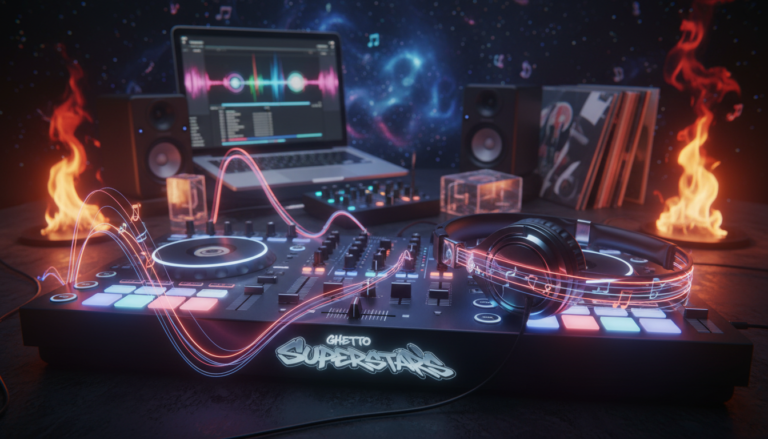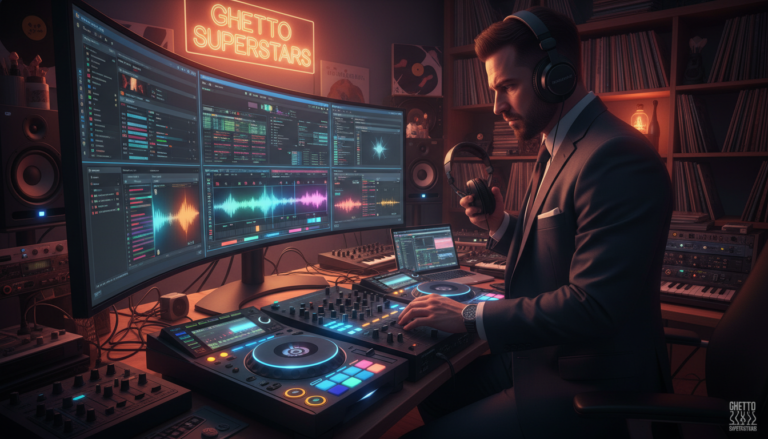
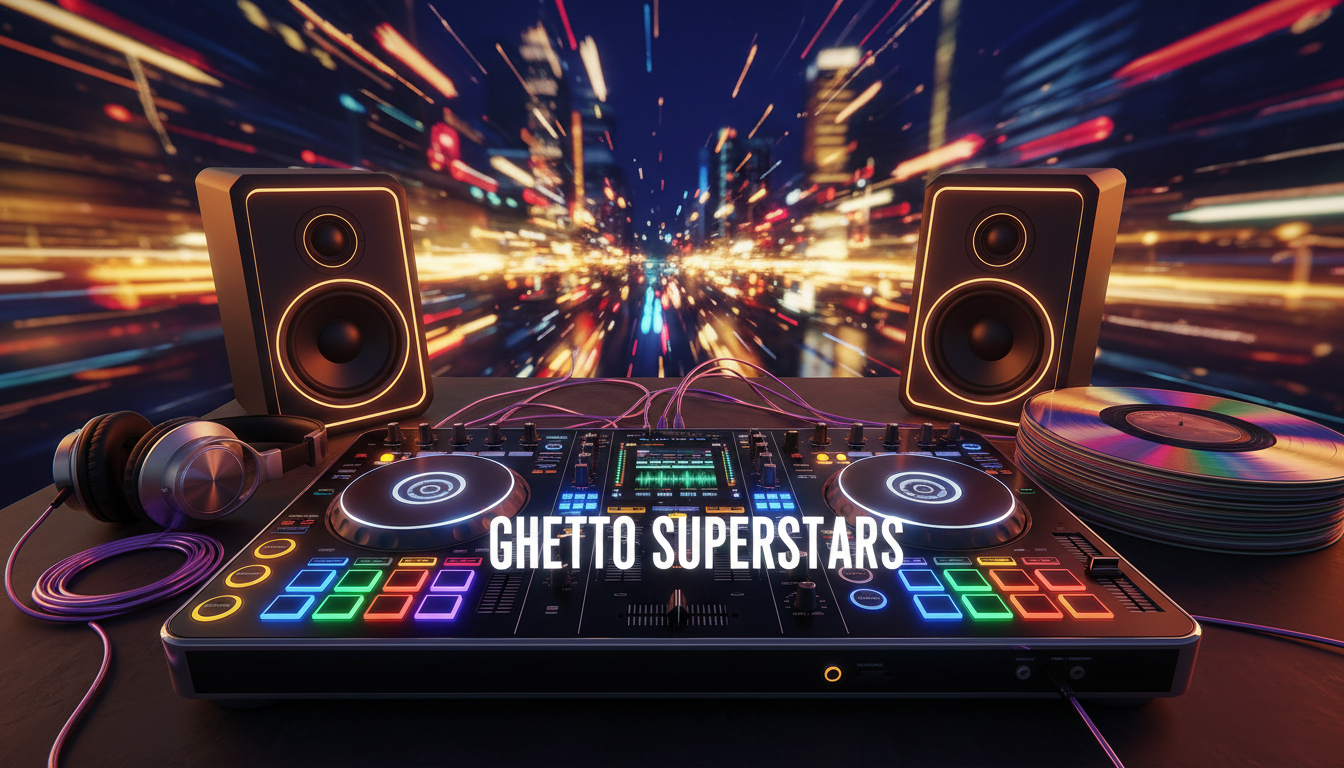
Ready to turn unboxed gear into your first clean blend? We’ll get you there fast, with a practical DJ controller setup that fits a bedroom, dorm, or small studio.
We are a creative hub. We teach the basics, cut the fluff, and celebrate wins together. This quick guide defines the hardware that controls software, explains why it matters for first-time users, and lays out simple steps: connect, confirm audio routing, load music, and test a short mix.
Watch for top pitfalls: Bluetooth lag, wrong audio device, overloaded USB hubs, and gain pushed too hot. Avoid those and your first practice session will feel smooth, not frustrating.
We’ll walk you section-by-section like a checklist, not a textbook. When you’re ready to explore gear types and tradeoffs, learn about controller types. And if you want inspiration, Ghetto Superstars has free AI music tools and fresh mixes when it’s time to level up.
Key Takeaways
- We promise a clear path from unboxed gear to a short, clean mix.
- Speed and portability make this the easiest entry point for many beginners.
- Follow the simple flow: connect, route audio, load tracks, test mix.
- Avoid Bluetooth lag, wrong audio device selection, USB overload, and hot gain.
- Use this guide like a checklist and grow from home practice to live events.
- Find inspiration and tools at Ghetto Superstars when you’re ready to create sets.
What You’ll Need Before You Plug Anything In
Before you touch any cables, let’s gather the gear that’ll keep your first session worry-free.
We list the non-negotiables so you show up ready. Collect these and your first practice becomes play.
- Equipment essentials: the controller, a USB cable, and a stable laptop or computer.
- Headphones: wired phones for cueing and beatmatching—timing accuracy matters.
- Speakers: studio monitors for desk practice, or a small PA for room-filling sound.
- Music source: local files or supported streaming, plus enough free storage for analysis files.
Why “stable” beats raw specs
Real-time audio is picky. A consistent laptop or computer with a clean USB port keeps audio reliable. You don’t need the latest CPU. You need a machine that won’t freeze mid-mix.
Quick buying and borrowing tips
Start with what you have. Avoid weak links: cheap USB hubs, frayed cables, and Bluetooth for monitoring — Bluetooth causes lag.
Bottom line: once these essentials are locked, everything else is creative choice. We’ll show you options and community tools later, after the basics are solid.
Choosing the Right Controller and Setup Style for Beginners
Choosing the right path of gear gets you mixing sooner and keeps momentum high.
Controller vs modular decks and mixer vs all-in-one systems
We break it into three clear paths: laptop + controller, modular decks with a separate mixer, or an all-in-one standalone system.
Controllers are plug-and-play and low on price. Modular rigs—turntables or CDJs plus a mixer—match club standards and vinyl culture. All-in-one units give a club feel without a computer, but cost more.
Why most first-time DJs start with a controller and software
Beginners pick compact controllers because they boost practice time and cut troubleshooting. You get performance pads, effects control, and an integrated audio interface quickly.
Portability, price, and performance features to look for
Look for solid jog wheels, smooth faders, a sensible layout/design, and an audio interface that fits your monitors and headphones.
| Type | Best for | Pros | Cons |
|---|---|---|---|
| Controllers | Practice, portability | Low price, many features, fast setup | Depends on computer; less tactile than vinyl |
| Modular decks + mixer | Vinyl lovers, pro booths | Durable, customizable, club-standard | High cost, less portable |
| All-in-one system | Home club feel | No computer needed, USB playback | Heavier price, limited customization |
Mindset: the best system is the one that keeps you mixing. Skill beats gear flex every time. We focus on growth and the range of choices that fit your goals.
DJ Controller Setup: Connecting Your Controller, Computer, and Power
Start by placing your gear where motion feels natural and cables stay out of the way. A clean station cuts stress and saves practice time.
Placement and cable safety
Center the unit at elbow height. Give your arms room. Keep drinks and snacks well away.
Run power and audio cables separately when possible. Leave slack so you can move without tugging plugs. Tape or tuck cords to avoid trips.
USB best practice
Plug the device directly into your computer when you can. Avoid loose hubs and cheap splitters—they add latency and dropouts.
Use the cable that came with the product. If you must use a hub, choose a powered, high-quality option.
Power, batteries, and device checks
Keep your laptop on the charger and disable aggressive battery saving. Confirm whether the unit is bus-powered or needs its own supply.
If your device isn’t recognized: try another USB port, restart your software, then check manufacturer drivers and firmware.
| Connection | Best for | Quick notes |
|---|---|---|
| USB direct | Most home rigs | Lowest latency, simplest option |
| Powered hub | Multiple devices | Use quality hubs to avoid dropouts |
| Dedicated power | Bus-powered limits | Stabilizes performance and protects battery |
Pro habit: stable power and tidy cables are part of good practice. Nail this and your sound and performance become fun, not fragile. We’ll help you grow the skills to play with confidence.
Installing DJ Software and Matching It to Your Hardware
Software is the engine — choose one that fits your workflow and your music will follow.

Rekordbox, Serato, Traktor, VirtualDJ, and Djay basics
Think of the app as the brain. It analyzes tracks, runs effects, and stores your library.
Rekordbox is best if you plan to move to Pioneer CDJs. Serato balances simplicity and pro features. Traktor is known for deep effects and tight beat grids. VirtualDJ supports many devices. Algoriddim Djay is great on iOS.
Native Instruments controllers and Traktor fit
If you own native instruments hardware, Traktor often offers the smoothest integration and mappings. That tight link boosts creative control and effect routing.
Licenses, unlocks, and lite vs pro
Most apps offer a Lite option and a Pro option. Lite gets you started. Pro adds recording, advanced FX, and extra features. Some controllers require a license unlock to enable full control.
First launch settings for stable sound
On first launch pick the correct audio device and set the sample rate to match your interface. Use conservative buffer settings so audio stays clean. Save defaults and test a short mix to confirm quality.
- Quick tip: Match software choice to your controls for fewer surprises.
Hooking Up Headphones and Speakers the Right Way
Connecting your headphones and speakers the right way saves time and keeps your mixes tight. Start with a clean signal chain and you’ll hear the difference instantly.
Headphone cueing and the cue/master mix
Plug your headphones into the headphone jack. Use the cue buttons to audition tracks before you play them live. Adjust the cue/master mix knob so your preview and program blend comfortably.
RCA outputs and simple adapters
Most entry units send line-level out via RCA. That matches many powered monitors and small PAs. If you need XLR or 1/4″, a cheap RCA-to-TRS or RCA-to-XLR adapter will pair the devices quickly.
Active vs passive speakers for home practice
Active speakers have built-in amps and are easiest for home use. Less gear. Fewer failure points. Passive speakers need an external amp and more wiring, so they’re better for bigger systems.
Bluetooth, latency, and timing
Bluetooth may connect, but it adds lag that ruins cueing and beatmatching. For reliable timing and tight mixes, wired monitoring wins every time.
Gain staging and clarity tips
- Set channel trim so levels are healthy—avoid clipping.
- Use master volume for overall control and speaker volume for room level.
- Keep bass controlled so your mix keeps headroom and translates well.
Clean sound is respect. Good hookups and basic gain staging give you the confidence to practice and grow. Quality matters—your ears and the room will thank you.
Configuring Audio, Latency, and Deck Settings for Smooth Mixing
Good sound starts with a few careful clicks — and it keeps the vibe steady. We walk you through the simple choices that protect the groove and free you to focus on the mix.
Selecting the correct audio device in your software
Open your software and pick the audio device that matches your interface. This makes sure your headphones and speakers get the same clean signal.
Tip: If multiple devices appear, choose the one with the interface name or the highest sample rate.
Buffer size and latency: finding the beginner sweet spot
Latency affects feel. A small buffer is tight but can crackle. A big buffer is stable but slow.
Start with a moderate buffer and test beat-matching. Raise the buffer if you hear clicks. Lower it when CPU load is low.
Deck layout, crossfader curve, and EQ basics
Keep the view simple. Use 2-deck until your skills feel solid, then try 4-deck for more options.
Set the crossfader curve to smooth for blends; sharper for cuts. EQ rules are basic: reduce low overlap, keep mids musical, and tame harsh highs.
Mapping fixes when buttons don’t match
If a pad or knob does the wrong thing, load the mapping in software or switch to the factory map. Traktor and other apps often include easy mapping tools.
- Rescan MIDI if a device changes.
- Reset a single control instead of the whole map.
- Save a custom map once it feels right.
Stable audio + responsive controls = you focus on the performance, not the menu.
Loading Music, Organizing Your Library, and Using Streaming
Build a music library that tells your story, not a random archive of files. We show a clear path from import to gig-ready crates so your practice time pays off.
Import tracks into your software and let it analyze BPM, key, and beatgrids. Analysis creates waveforms and grids that make tempo tools behave and save time when you practice transitions.
Crates, playlists, and flow
Create crates by mood, energy, and role—openers, peak tracks, closers. Keep a small selection of go-to songs for quick set building. Curate, don’t hoard.
Streaming vs downloads
Streaming is great for discovery and fresh ideas. Downloads are safer for live play—offline access and fewer surprises. Many apps let you toggle between both options.
File quality and translation
Prefer higher-quality files. Better sources mean tighter bass, clearer highs, and fewer artifacts on bigger speakers. A compact, curated library improves your skills and your range.
Tip: Study mixes from Ghetto Superstars for transition ideas and energy control.
Testing Your First Mix and Troubleshooting Common Problems
A quick live test will turn theory into sound and show you what needs fixing. We keep this calm and practical. Troubleshooting is a skill. It unlocks creativity.
No sound from speakers: the fastest signal-chain checklist
Follow this order and you’ll find the silence quickly.
- Confirm the controller is connected via USB.
- Check speaker power and volume. Use the controller master level next.
- Verify outputs (RCA or TRS) and that the correct audio device is selected in your software.
Headphones not cueing
Cue buttons, channel faders, and crossfader position matter. Engage cue on the channel, raise the channel fader, and set split-cue if you use it.
If you still hear nothing, check the headphone volume and the software cue routing on your laptop or computer.
Audio crackles, dropouts, and sync drift
Close heavy apps, watch CPU load, and plug into a different USB port if needed. Increase buffer size until the crackles stop.
For beatgrid drift, nudge or re-analyze the track grid in your software. A one-click adjust keeps mixes tight.
Quick test mix: load two tracks, set cue points, match tempos, and perform one clean transition. That proves the chain and builds CONFIDENCE.
Next Steps: Practice, Creative Tools, and Pro Support from Ghetto Superstars
Take your practice beyond the bedroom and turn small wins into big performance moments. We map the path from daily drills to paying gigs. Grow skills, test new features, and pick equipment that scales as your confidence grows.
Generate names, setlists, and event ideas with Free AI Music Tools
Spark creativity fast. Use our Free AI Music Tools to craft stage names, put together setlists, and plan event concepts that fit your vibe. Try it here: https://ghettosuperstars.co/free-ai-music-tools/.
Find fresh inspiration: stream and download mixes
Study transitions, pacing, and energy from our crew. Stream or download mixtapes and video mixes to sharpen your ear and build better sets. Access them at https://ghettosuperstars.co/download-mixes/.
When you’re ready for bigger sound
Move from monitors to small PA and speakers when shows call for more presence. We offer services across Uganda—sound & PA, lighting, and hosting—so your practice translates to real-world performance. Learn more: https://ghettosuperstars.co/services/.
We’re a creative hub for djs, artists, planners, and music lovers—building culture, giving back, and offering practical options as you grow.
- Consistent practice and intentional music digging improve your performance.
- Use our tools to refine setlists and explore new creative features.
- Browse gear in our shop, or support community programs via Ghetto Foundation.
Book or inquire: +256 741 669 338 | services@ghettosuperstars.co
Conclusion
Finish strong: one verified transition and a saved change keeps momentum.
You’ll need a clear chain, good audio routing, and wired headphones to avoid lag. Keep your laptop or computer charged and your signal path tidy.
This short guide recaps what you’ll need, how to connect everything, how to set software and audio, how to route headphones and speakers, and how to test your first mix with confidence.
Core win: a reliable setup turns practice into progress. Simple chain fixes—audio device choice, volume staging, USB stability—solve most issues fast.
Build a steady routine: short sessions, repeated transitions, and a library you love. Explore our Free AI Music Tools, stream or download mixes, and reach out for sound, lighting, and event support.
Music connects us. Everything you need starts here at Ghetto Superstars — tools, mixes, services, shop, and community impact. Find resources at ghettosuperstars.co.